









How to Upload Large Video Files Without Failure: 9 Proven Methods (2026)
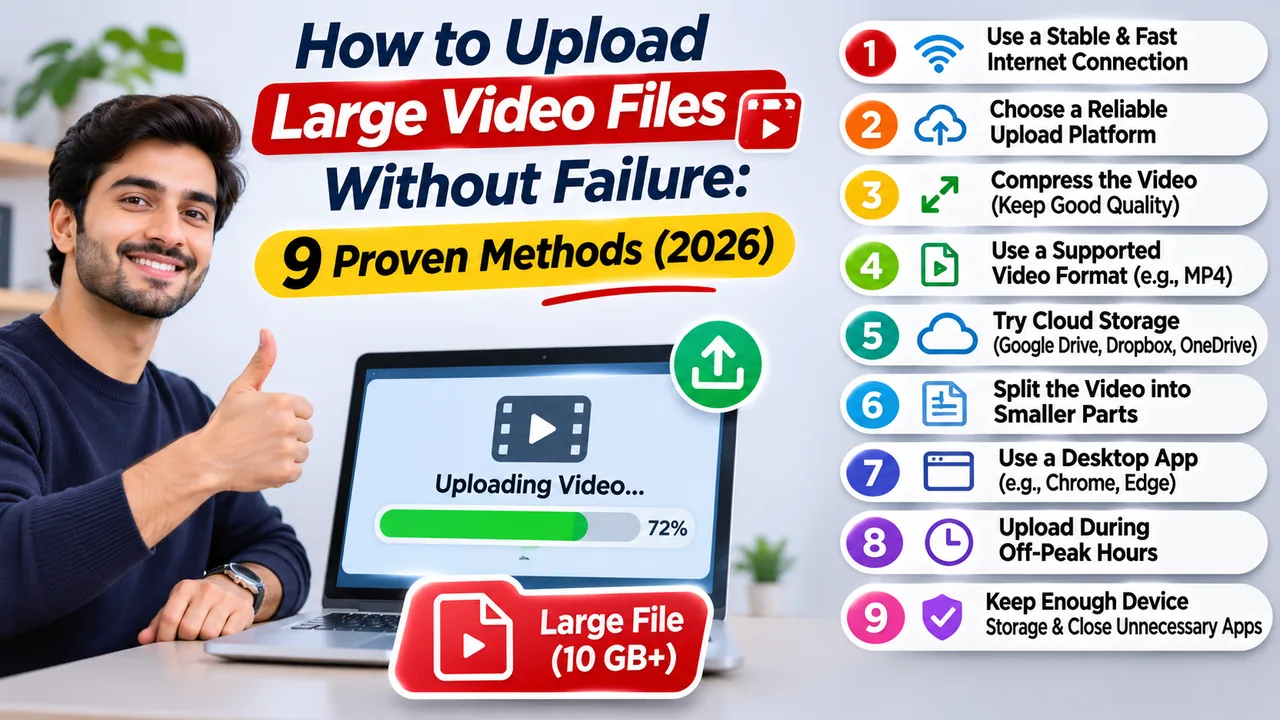
Uploading a short video is usually straightforward. Select the file, wait for the progress bar to finish, and share the link. But when the video is several gigabytes in size, even a routine upload can become frustrating.
A 10GB recording may take hours to transfer over a typical home connection. The upload might freeze halfway through, fail when the browser loses its connection, or appear to finish without producing a playable video.
These problems are not always caused by the video hosting service. Upload bandwidth, browser behavior, network interruptions, file-size restrictions, and server-side processing can all affect the result.
If you're trying to understand how to upload large video files reliably, the most useful approach is to identify where the transfer is failing before changing anything.
This guide explains nine practical methods for uploading large videos, what to check when something goes wrong, and how to choose an upload workflow that fits your file size and connection.
Quick Answer: How to Upload Large Video Files
The most reliable approach is to use a video hosting service that supports your file size, upload over a stable connection, and use chunked or resumable transfers when available.
Before uploading:
Confirm that the file fits your account's upload limit.
Check your internet connection's upload speed, not just its download speed.
Use a current browser and keep the upload tab open.
Avoid network changes during the transfer.
Use supported chunked uploads for large files when the platform provides them.
Wait for any required video processing after the transfer completes.
If your upload is already stuck, skip to the troubleshooting table below.
Why Large Video Uploads Fail
A large video upload is not simply a bigger version of uploading a photo.
A browser may need to maintain an active transfer for an extended period. During that time, the connection can experience packet loss, the computer can enter sleep mode, the browser can become unresponsive, or an intermediary server can reject the request.
There are also two separate stages that users sometimes confuse:
Uploading transfers the original file from your device to the hosting service.
Processing prepares the uploaded video for playback. Depending on the platform, this may involve inspecting the media, converting its format, generating streaming files, or creating additional resolutions.
A video that has finished uploading but is still processing does not necessarily need to be uploaded again.
Check the Maximum File Size Before Uploading
The first thing to verify is whether your account is allowed to upload a file of that size.
Video hosting platforms often apply different limits to visitors, registered users, and paid subscribers. Some services also distinguish between browser uploads, API uploads, and remote imports.
A file that exceeds the permitted limit may be rejected immediately. In other cases, the upload interface may display a generic error.
Before starting, check:
The maximum file size allowed by your account.
Whether the limit applies per file or to total storage.
Whether the upload method has its own restrictions.
Whether your account has enough remaining storage.
For FileMoon users, the best starting point is the official FileMoon FAQ. Developers should also review the FileMoon API documentation, which describes additional upload requirements.
Do not assume that upgrading a hosting plan will fix every failed upload. A network interruption or browser problem can still affect a file that is within the permitted size.
Measure Your Actual Upload Speed
One of the most common misunderstandings about internet speed is the difference between downloading and uploading.
An internet package advertised at 100 Mbps may provide much lower upload bandwidth. This matters because the entire video must travel from your device to the hosting server.
Consider a 10GB video file.
| Upload speed | Ideal transfer time for 10GB |
|---|---|
| 5 Mbps | About 4 hours 27 minutes |
| 10 Mbps | About 2 hours 13 minutes |
| 20 Mbps | About 1 hour 7 minutes |
| 50 Mbps | About 27 minutes |
| 100 Mbps | About 13 minutes |
These are theoretical estimates based on 10 decimal gigabytes. Actual uploads generally take longer because of protocol overhead, network conditions, and server-side factors.
You can measure your connection using a service such as Speedtest by Ookla.
Pay attention to the upload speed result.
If your upload speed is 5 Mbps, a large file taking several hours is not necessarily evidence of a problem with the hosting platform.
Why upload speed changes during a transfer
Internet connections rarely deliver exactly the same throughput every second.
Other devices may be using the connection, your internet provider may experience congestion, or your Wi-Fi signal may become unstable.
A temporary slowdown is normal. A progress bar that remains unchanged for a long period, however, deserves further investigation.
Use a Wired Connection for Important Uploads
Wi-Fi is convenient, but it introduces another point of failure during long transfers.
A laptop moving between access points, interference from nearby networks, or a weak signal can interrupt an upload.
For important large-file transfers, Ethernet is generally the more predictable option.
If Ethernet is unavailable, stay close to your router, avoid switching networks, and make sure your device will not automatically disconnect from Wi-Fi.
You should also prevent your computer from entering sleep mode while the upload is active.
Locking your screen is usually different from putting the computer to sleep. Nevertheless, verify your device's power settings before leaving a long upload unattended.
Use Chunked Uploads Instead of One Large Request
One of the most useful technologies for large-file transfers is chunked uploading.
Rather than sending a 10GB file as one enormous HTTP request, the upload client divides it into smaller pieces.
Each piece is transferred separately, and the server assembles the complete file according to the upload protocol.
For example, a 9GB file divided into 90MB chunks would require approximately 100 chunks, assuming decimal units and an evenly divisible file.
This approach can help platforms work around request-size limits and manage individual transfer failures more effectively.
However, chunking alone does not guarantee that an interrupted upload can resume. That depends on how the server tracks completed chunks and whether the client supports retrying or resuming them.
How FileMoon handles chunked API uploads
FileMoon's API documentation describes a chunked upload workflow using 90MB chunks.
The API requires developers to send chunk metadata, including an upload identifier, chunk index, total chunk count, file size, and byte offset.
The documentation also specifies that the original filename must remain consistent across the chunks.
This is particularly useful for developers building upload integrations, content-management systems, or automated media workflows.
For ordinary users, the browser uploader is the simpler starting point. Developers should follow the documented API procedure rather than sending a large file in a single request.
Choose Resumable Uploads When Available
Chunked uploads and resumable uploads are related, but they are not identical.
A resumable upload allows a compatible client to continue an interrupted transfer without sending the entire file again.
For example, suppose a 12GB video upload stops after 8GB has already been transferred.
With a properly implemented resumable upload system, the client can identify the accepted data and continue from the appropriate position.
Without resumability, the user may need to restart the entire transfer.
The open tus resumable upload protocol is one example of a standardized approach. Cloudflare also documents resumable video uploads for unreliable connections.
Importantly, not every platform offering chunked uploads supports the tus protocol. Always use the upload method officially supported by your hosting provider.
For FileMoon, developers should follow its documented chunked API rather than assume tus compatibility.
Check Your Browser Before Restarting the Upload
When an upload fails, restarting the same file repeatedly without checking the browser may waste considerable time.
Start with these checks:
Update your browser. Current versions of Chrome, Firefox, Edge, and Safari generally provide better compatibility with modern web applications.
Temporarily disable interfering extensions. Privacy tools, request blockers, and certain security extensions can interfere with upload requests. Only disable an extension temporarily if you trust the website and understand the implications.
Avoid closing the upload tab. Many browser-based upload interfaces require the page to remain active until the transfer finishes.
Try a private browsing window. This can help identify whether extensions or stored browser data are contributing to the problem.
Test a smaller file. If a 100MB file uploads successfully but a 9GB file fails, the issue may involve transfer duration, request limits, or large-file handling rather than a complete connectivity failure.
If the same file consistently fails at the same percentage, record the error message and the approximate point of failure.
That information can help technical support identify the cause.
Reduce Video File Size When Appropriate
Sometimes the easiest way to upload a large video is to make the file smaller.
This does not necessarily mean reducing the resolution.
Video size depends heavily on bitrate, duration, codec, and audio settings.
A 1080p recording saved at an unnecessarily high bitrate may be significantly larger than a visually similar recording using more efficient encoding.
For example, a 60-minute video encoded at a total bitrate of 20 Mbps occupies approximately 9GB, while the same duration at 8 Mbps occupies approximately 3.6GB.
Those figures are approximate and exclude some container overhead.
Choose the right compression method
H.264 remains a practical choice for broad device compatibility.
H.265/HEVC can offer better compression efficiency for many types of content, although encoding requirements and device compatibility vary.
AV1 is another efficient option, particularly for modern video workflows, but encoding can be computationally demanding and compatibility should be checked.
Tools such as HandBrake and FFmpeg can help you adjust video encoding settings.
Avoid compressing a video repeatedly. Every lossy re-encoding can reduce quality, and an extremely low bitrate can introduce visible artifacts.
If your original file already meets your needs and your hosting account supports its size, compression may be unnecessary.
Understand What Happens After Uploading
A successful file transfer does not always mean the video is immediately ready to stream.
Modern video hosting platforms may need to prepare the original file for browser playback.
This can involve checking the video codec, extracting metadata, generating thumbnails, or converting the video into streaming-friendly formats.
For example, HTTP Live Streaming (HLS) commonly uses playlists and media segments to deliver video through compatible players.
On FileMoon, supported uploaded videos may undergo processing before their streaming player becomes available.
A larger file can take longer to process, especially if it requires video conversion.
If the upload has completed and the dashboard shows a processing status, avoid repeatedly uploading the same file unless the platform reports a failure or support recommends it.
For a broader explanation, read How FileMoon's Upload and Streaming System Works.
Choose the Right Hosting Workflow
The best upload method depends on what you plan to do with the video.
Someone sharing a single recording has different requirements from a publisher uploading dozens of videos every day.
| Use case | Practical approach |
|---|---|
| Occasional video sharing | Browser-based upload |
| Large uploads over unstable internet | Supported resumable or retryable chunked upload |
| Automated video publishing | Documented hosting API |
| Video embedding on a website | Dedicated video hosting with embed support |
| Reducing upload bandwidth | Compress the source video when appropriate |
| Managing a growing video library | Hosting platform with file management and processing |
If you manage a website, separating video delivery from your main web server can also help avoid placing heavy media traffic on the same infrastructure that handles your pages and database.
FileMoon provides video hosting, streaming, embedding, and developer integration options. You can review the available features on its video hosting platform page.
Troubleshooting: Why Is My Video Upload Stuck?
The percentage shown by an upload interface is a useful clue, but it does not identify the problem on its own.
| Problem | Possible cause | What to try |
|---|---|---|
| Upload stuck at 0% | Browser issue, blocked request, or connection failure | Try a smaller file and another browser |
| Upload fails immediately | File-size restriction or rejected request | Check account limits and error messages |
| Upload stops midway | Network interruption or transfer timeout | Use a stable connection and supported chunking |
| Upload reaches 99% | Finalization, verification, or assembly may still be running | Wait and check the dashboard before restarting |
| Upload completes but video will not play | Processing incomplete or unsupported media characteristics | Check processing status and codec |
| Upload is extremely slow | Limited upstream bandwidth or network congestion | Measure upload speed and reduce competing traffic |
What if the upload stops at exactly the same percentage?
A repeated failure at a consistent point may indicate a request-size boundary, a problematic chunk, an application error, or another repeatable condition.
Record the percentage, file size, browser version, and error message.
If the platform provides an upload identifier, keep that information for support.
What if the browser says the upload succeeded but the file is missing?
First, refresh the file-management page and check whether the upload is still being finalized.
Avoid immediately submitting the file again, as doing so may create duplicate transfers.
If the file does not appear after a reasonable period, contact the hosting provider with the relevant upload details.
How to Upload Large Videos Using FileMoon
For users who want to host and share their own video content, FileMoon provides a centralized upload and management workflow.
The general process is straightforward:
Visit FileMoon.org and sign in to your account.
Open the available upload interface.
Select a supported video file within your account's current limits.
Keep your connection stable while the file transfers.
Check your file dashboard after the upload finishes.
If video processing is required, wait for the streaming version to become available.
Once the file is ready, use its available sharing or embedding options.
Developers who need automation can review the FileMoon API documentation for authenticated uploads and chunked transfer requirements.
Only upload videos you own or have permission to distribute.
Frequently Asked Questions
How can I upload a 10GB video online?
Choose a hosting service and account that explicitly support a 10GB file. Check your upload speed, use a stable connection, and prefer a supported chunked or resumable method when available. Confirm the service's current file-size limits before beginning.
Why does my video upload keep failing?
Common causes include unstable internet, browser interruptions, upload limits, request timeouts, and server-side errors. Testing a smaller file and recording the exact failure point can help narrow down the problem.
Can I upload large video files without compressing them?
Yes, provided the hosting platform supports the original file size and format. Compression is optional when you have sufficient upload bandwidth, storage, and compatible media files.
Is chunked uploading faster than normal uploading?
Not necessarily. Chunking primarily changes how the file is transferred and managed. It can improve reliability and allow better retry behavior, but it does not automatically increase your internet connection's available bandwidth.
What is the difference between chunked and resumable uploads?
Chunked uploading divides a file into smaller parts. Resumable uploading allows an interrupted transfer to continue without restarting from the beginning. A platform can support chunking without implementing full resumability.
Why is my uploaded video still processing?
The hosting service may be inspecting, converting, or preparing the file for streaming. Processing time depends on factors such as file duration, codec, resolution, server workload, and the required output formats.
Can I upload large MP4 files from my phone?
Yes, if the hosting platform supports mobile browser uploads and the file is within the account's limits. Keep the phone connected to a stable network and avoid switching apps or allowing the device to suspend the upload process.
What is the best way to share a large video without emailing it?
Upload the video to a suitable hosting service and share its access link. This avoids large email attachment limits and gives recipients a simpler way to access the file. Check privacy settings before sharing sensitive content.
Final Thoughts
Learning how to upload large video files reliably is mostly about understanding the transfer process.
A stable connection matters, but so do file-size limits, browser behavior, supported upload protocols, and the processing steps that follow a successful transfer.
For occasional uploads, a standard browser interface may be sufficient. For larger or frequent transfers, properly implemented chunked or resumable uploads can reduce the frustration of starting over after an interruption.
If you're managing videos for a website or publishing workflow, a dedicated hosting platform can also simplify storage, streaming, and sharing.
The most useful rule is simple: identify whether the problem occurs during transfer, finalization, or processing before trying to fix it.
That distinction can save hours when working with multi-gigabyte video files.
Technical references
FileMoon — Frequently Asked Questions
tus — Resumable Upload Protocol