








Video Embed Not Working? 9 Proven Fixes for WordPress & HTML (2026)
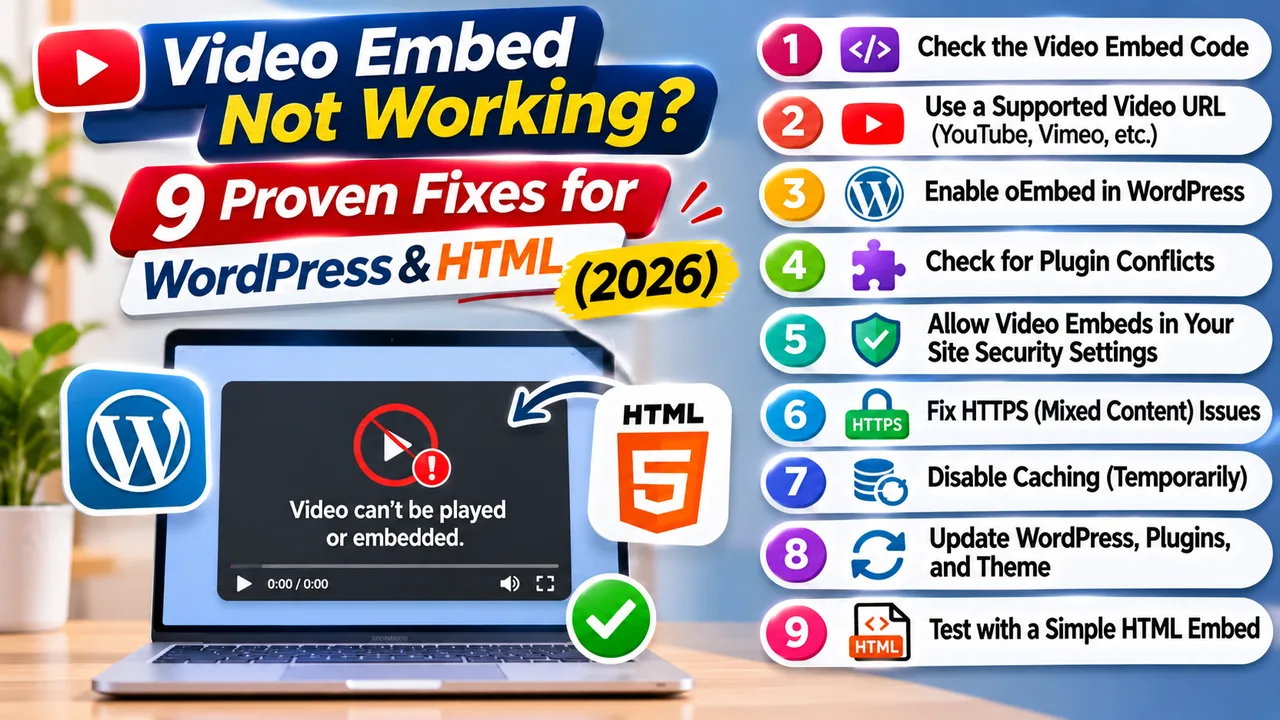
You've uploaded your video, copied the embed code, and added it to your website. Everything looks fine in the editor. But when you open the published page, the video player is blank, displays an error, or simply refuses to play.
This is a common problem for website owners, particularly when working with third-party video hosting services, WordPress, or custom HTML pages.
A video embed not working doesn't necessarily mean the video file is damaged. Sometimes the iframe URL is incorrect. Other times, the browser blocks the player because of security restrictions, or the video hasn't finished processing on the hosting platform.
The important thing is to identify whether the problem is with the embed code, your website, the hosting provider, or the viewer's browser.
This guide explains nine practical ways to fix broken video embeds, with examples for WordPress, HTML, Elementor, and externally hosted video players.
Quick Answer: How to Fix a Video Embed That Isn't Working
If your embedded video isn't showing or playing, start with these checks:
Confirm that the original video plays on its hosting platform.
Copy the official embed code again instead of using the normal watch-page URL.
Check whether your website is removing or modifying iframe HTML.
Inspect browser Console errors for blocked frames or resources.
Check whether the video has finished processing.
Test the page in another browser and on mobile.
Verify that the video's privacy and geographic access settings permit playback.
Check the iframe's dimensions and responsive layout.
Inspect the Network panel if the player still fails.
These checks help isolate the problem without making unnecessary changes to your website.
Why Is My Embedded Video Not Showing?
An embedded video usually loads through an iframe. The iframe creates a separate browsing context within your webpage, allowing the hosting provider's player to appear inside your content.
For example, your website may be hosted on WordPress while the video itself is stored on a dedicated video hosting platform.
When someone visits your article, their browser requests the embedded player from the external service.
Several things must work correctly for the video to appear:
The iframe must contain a valid player URL.
The hosting provider must allow the video to be embedded.
The browser must permit the relevant requests.
The video's access settings must allow the viewer to watch.
The player must be able to load the necessary media resources.
A failure at any of these stages can produce a blank player or playback error.
Common video embedding errors
| Problem | Likely cause | First thing to check |
|---|---|---|
| Blank iframe | Invalid URL, blocked frame, or failed player | Browser Console |
| Video unavailable | Deleted, private, or restricted video | Original video page |
| Player disappears after publishing | HTML sanitization | WordPress permissions |
| Video works on desktop but not mobile | Layout or browser compatibility | Mobile browser test |
| Refused to connect | Frame security restriction | CSP and response headers |
| Player loads but video never starts | Media request or processing problem | Network requests |
| Fullscreen button doesn't work | Missing iframe permission | allowfullscreen attribute |
Check Whether the Original Video Plays
Before editing your website, open the video directly on its hosting platform.
This is the fastest way to determine whether the problem is limited to embedding.
If the original video doesn't play, changing the iframe code probably won't solve the underlying issue.
Possible causes include incomplete processing, unsupported media, file deletion, access restrictions, or a temporary hosting problem.
If the video plays normally on its original page but fails inside your website, concentrate on the embed URL, iframe permissions, security headers, and website configuration.
What to do on FileMoon
If you're using FileMoon, sign in and locate the video in your file dashboard.
Check that the video is available for playback and that its access settings allow the intended viewers to watch it.
FileMoon supports video access controls, including password protection and geographic restrictions. These settings can affect whether a visitor can watch an embedded video.
Don't assume that a file is publicly accessible simply because you can play it while signed in.
Use the Correct Video Embed URL
One of the most frequent embedding mistakes is confusing a normal video page with an embeddable player.
A watch-page URL is intended to open a video on the hosting website. An embed URL is designed to load the player inside another webpage.
They aren't always interchangeable.
Example of a standard HTML iframe
<iframe src="https://video-provider.example/embed/VIDEO_ID" width="800" height="450" title="Video player" loading="lazy" allow="fullscreen; picture-in-picture" allowfullscreen> </iframe>
This is an illustrative example, not an actual FileMoon embed URL.
The src attribute must contain the player URL supplied by your hosting provider.
Avoid constructing embed URLs by guessing the provider's address structure.
If the service supplies a Share or Embed button, use the generated code.
Why a normal video link may fail
A hosting provider may prevent its ordinary watch page from being displayed in an iframe.
This can be an intentional security measure.
If the provider offers a separate embed player, that is the correct option to use.
Fix WordPress Video Embed Problems
WordPress supports several ways to display externally hosted videos, but not every provider works through the same method.
The WordPress Embed block supports recognized providers. For other services, you may need to use a Custom HTML block containing the provider's iframe code.
Method A: Use the WordPress Embed block
For supported video providers:
Open the relevant post or page.
Add an Embed block.
Paste the supported video URL.
Select Embed.
Preview the published result.
If WordPress cannot recognize the URL, don't assume the video is broken. The provider may simply require manual iframe embedding.
Method B: Use a Custom HTML block
For a provider that supplies iframe code:
Open the WordPress post editor.
Add a Custom HTML block.
Paste the complete iframe code.
Preview the page.
Save and check the live page.
If the iframe disappears after saving, investigate your site's HTML permissions.
WordPress can sanitize iframe markup for users who don't have the necessary unfiltered_html capability. WordPress.com also has plan-specific restrictions on custom iframe markup.
See the official WordPress Custom HTML documentation for details.
What about Elementor?
Elementor users can generally insert provider-generated iframe code through an HTML widget.
After saving, test the live page rather than relying only on the editor preview.
If the player works inside Elementor but not on the published page, investigate caching, optimization plugins, script conflicts, and security policies.
Avoid disabling every plugin at once on a live production website. Test suspected conflicts individually or use a staging environment.
Check Content Security Policy and X-Frame-Options
Sometimes the iframe code is perfectly valid, but the browser refuses to display the embedded page.
This can happen when the video hosting service restricts which websites may embed its player.
Two important security mechanisms are:
X-Frame-Options: An HTTP response header that can prevent a page from being displayed inside a frame.
Content-Security-Policy: A security policy that can control which external resources and frames are permitted.
For example, a browser might display:
Refused to frame a page because an ancestor violates the Content Security Policy directive "frame-ancestors".
This indicates that the embedded resource's framing policy does not permit the current embedding context.
Another possible message is:
Refused to display a page in a frame because it set X-Frame-Options to SAMEORIGIN.
How to identify the restriction
Open Chrome Developer Tools using F12.
Select the Console tab, reload the page, and look for framing-related errors.
You should also understand the difference between two CSP directives:
frame-src controls which iframe sources the parent website is allowed to load.
frame-ancestors controls which parent websites are allowed to embed the protected page.
If the hosting provider's player is restricted by its own frame-ancestors policy, you generally cannot fix that by editing your WordPress page.
Contact the provider or use its officially supported embed URL.
Do not disable website security headers broadly just to make one player work.
For technical details, see MDN's frame-ancestors documentation.
Fix Blank Video Players and Iframe Layout Problems
A player may load successfully but remain invisible because of its layout.
For example, an iframe placed inside a container with zero height can technically exist without occupying visible space.
This is especially common with custom CSS, page builders, and responsive layouts.
Responsive video embed example
<div class="video-container"> <iframe src="https://video-provider.example/embed/VIDEO_ID" title="Embedded video" loading="lazy" allow="fullscreen; picture-in-picture" allowfullscreen> </iframe> </div>
Add the following CSS:
.video-container { width: 100%; aspect-ratio: 16 / 9; } .video-container iframe { display: block; width: 100%; height: 100%; border: 0; }
Replace the placeholder URL with the official player URL.
This creates a responsive 16:9 video area suitable for most landscape videos.
For vertical videos, a different aspect ratio, such as 9:16, may be more appropriate.
What else should you check?
Inspect whether the iframe or its parent container has:
display: none
visibility: hidden
height: 0
overflow: hidden with unsuitable dimensions
An unexpected absolute positioning rule
A blank area isn't always a server error. Sometimes the player is simply being hidden by CSS.
Fix Embedded Videos That Don't Play on Mobile
Mobile browsers can behave differently from desktop browsers, particularly when it comes to autoplay, fullscreen playback, and media compatibility.
A video that starts automatically on a desktop browser may require a user interaction on a mobile device.
Modern browsers commonly restrict autoplay with sound.
If your embedded video relies on autoplay, check whether the provider supports muted autoplay and whether the iframe includes the appropriate permissions.
For example:
<iframe src="https://video-provider.example/embed/VIDEO_ID" title="Video player" allow="autoplay; fullscreen; picture-in-picture" allowfullscreen> </iframe>
The allow attribute permits the specified features where supported, but it does not override browser autoplay policies or guarantee that the player will start automatically.
The hosting provider may also require its own player-specific settings.
Test actual mobile playback
Don't rely entirely on a desktop browser's responsive preview.
Open the published page on an Android phone and an iPhone if possible.
Check whether the player appears, starts after tapping Play, enters fullscreen mode, and displays correctly when the screen orientation changes.
If the video plays on one device but not another, investigate browser compatibility and media format support.
Check Video Processing and Playback Readiness
A video can finish uploading before it is ready to stream.
Many hosting platforms inspect or process uploaded videos before making them available through a browser player.
This may involve generating thumbnails, checking codecs, or preparing streaming versions.
For example, FileMoon supports HLS streaming for supported videos.
HLS delivers video using a playlist and media segments rather than requiring the browser to download an entire video file before playback.
However, an HLS player still depends on the necessary media resources being available.
If the video is processing, the embedded player may not yet be ready.
How to troubleshoot
Check the file's status in your hosting dashboard.
If processing is still underway, wait for completion.
If processing has failed, investigate the reported error or contact the provider.
If the hosting dashboard shows that the video is ready but the embed still fails, move on to browser Network diagnostics.
Avoid repeatedly uploading the same file unless there is evidence that the original upload or processing failed.
Check Privacy, Password and Geographic Restrictions
Sometimes an embedded video works for the website owner but not for visitors.
This can happen when the owner is signed in to the hosting platform while other viewers are not.
It can also happen when the video has access restrictions.
FileMoon provides controls for public/private access, password protection, and geographic availability.
These features are useful, but they can also explain why some visitors cannot watch an embedded video.
How to investigate access restrictions
Open the page in a private browser window without signing in to the hosting platform.
If possible, test from another permitted device or network.
Review the video's access settings and determine whether the intended audience should have permission to watch it.
Do not remove restrictions automatically.
If a video is private or password-protected for a reason, preserve that protection and adjust the publishing workflow appropriately.
A video embed should respect the owner's intended access controls.
Use Chrome Developer Tools to Identify Playback Errors
When the usual checks don't solve the problem, Chrome Developer Tools can reveal which request is failing.
This is particularly useful when the iframe loads but the video itself never starts.
Step 1: Open the Network panel
Open the published webpage.
Press F12 and select Network.
Enable Preserve log if you want to retain requests during navigation or reloads.
Step 2: Reload the page
Watch the requests made by the embedded player.
Depending on the hosting platform, these may include the iframe document, JavaScript, media playlists, video segments, and other resources.
Step 3: Look for failed requests
Common HTTP statuses include:
| Status | Meaning | Possible next step |
|---|---|---|
| 401 | Unauthorized | Check authentication |
| 403 | Forbidden | Check permissions or access rules |
| 404 | Not Found | Verify the URL or media resource |
| 429 | Too Many Requests | Check rate limiting |
| 500 | Internal Server Error | Report server-side failure |
| 502 | Bad Gateway | Investigate upstream service |
| 503 | Service Unavailable | Check temporary service availability |
A failed media segment request may indicate a different issue from a blocked iframe document.
Step 4: Review the Console
Look for browser messages related to CSP, unsupported media, JavaScript errors, or blocked network requests.
Step 5: Record useful diagnostic information
If you contact your hosting provider, include the affected page URL, approximate failure time, browser version, HTTP status, and relevant error message.
Do not publicly share signed media URLs, session cookies, authentication tokens, or other sensitive information.
How to Embed FileMoon Videos Correctly
FileMoon is designed to host and stream supported video files, including through website embeds.
The general workflow is:
Sign in to your FileMoon account.
Upload a video within your account's current limits.
Wait until the video is ready for playback.
Locate the file's available sharing or embedding options.
Copy the official embed code.
Paste it into your website's supported HTML area.
Test the published player as a normal visitor.
If you need a general walkthrough, read How to Embed Videos on Any Website.
For FileMoon's available hosting and playback features, visit the FileMoon homepage.
The most important rule is to use the provider-generated embed code and verify that the video is accessible to its intended viewers.
Frequently Asked Questions
Why is my video embed not working in WordPress?
A video embed not working in WordPress may be caused by an unsupported Embed block URL, removed iframe markup, incorrect player code, or security restrictions. Try the provider's official iframe code in a permitted Custom HTML block and test the published page.
Why does my iframe show a blank screen?
A blank iframe can result from a blocked resource, invalid URL, hidden container, or failed player initialization. Check the browser Console and iframe dimensions.
Why does my embedded video work on desktop but not mobile?
Possible causes include browser autoplay policies, incompatible media, responsive layout problems, or player-specific mobile behavior.
How do I fix an iframe that says "refused to connect"?
Check the browser Console for framing restrictions. The destination website may prohibit embedding through its CSP or X-Frame-Options headers. Use the provider's supported embed endpoint.
Can I embed a FileMoon video in WordPress?
FileMoon supports website embedding. Use its available embed code in a WordPress editor or page builder that permits iframe markup.
Why is my embedded video not playing after upload?
The video may still be processing, or the player may be unable to access a required media resource. Check the hosting dashboard and Network panel.
Can browser extensions block embedded videos?
Yes. Privacy and content-blocking extensions can interfere with third-party players or their resources. Test in a clean browser profile before changing website settings.
Does HTTPS matter for video embedding?
Yes. Secure webpages should load their embedded resources through HTTPS. Browsers may block insecure active content, including HTTP iframe documents, on HTTPS pages.
Why is my embedded video visible only when I'm logged in?
The video may require authentication or have private access settings. Test as a signed-out visitor and review the hosting platform's permissions.
How can I make an embedded video responsive?
Place the iframe inside a container with an appropriate aspect ratio and set the iframe width and height to 100% of that container.
Final Thoughts
A broken video embed can look like a complicated technical problem, but the cause is often identifiable with a few focused checks.
Start by confirming that the original video plays. Then verify the embed URL, inspect your website's iframe markup, and check whether browser security policies or access restrictions are preventing playback.
If the player appears but the video never starts, use the Network panel to investigate failed media requests.
For WordPress users, the Custom HTML block and correct permissions are especially important. For developers, CSP directives, iframe attributes, and browser diagnostics provide more precise clues.
When a video embed is not working, the goal isn't to change as many settings as possible. It's to find the exact stage where the player fails and correct that problem without weakening your website's security.
With the right diagnostic approach, most common embedding issues can be investigated systematically rather than through repeated trial and error.
Technical references