








How to Embed Videos on Any Website (2026 Guide)

Learning how to embed videos on any website is useful whether you manage a WordPress blog, run an online course, publish tutorials, or build a custom web application.
A video embed lets visitors watch a video directly on your page without requiring you to upload the complete video file to your website's hosting server.
For example, a publisher can upload a tutorial to a dedicated video hosting platform, copy its embed code, and place the player inside a blog post. Visitors can watch the tutorial without leaving the article.
However, embedding isn't always as simple as pasting a link. Different platforms use different players, some website builders restrict iframe code, and an incorrectly configured embed can create mobile layout or playback problems.
This guide explains seven practical ways to embed videos, including HTML, WordPress, Elementor, Laravel, and dedicated video hosting services such as FileMoon.
You'll also learn how to make embedded videos responsive, avoid common mistakes, improve loading performance, and troubleshoot videos that refuse to play.
What Does It Mean to Embed a Video?
Embedding a video means displaying a video player inside a webpage while the video itself may be stored and delivered from another service.
The video appears as part of your website's content, but the hosting provider handles the underlying media delivery.
Consider a business publishing a product demonstration.
Instead of uploading a large video file directly to its web server, the business can use a video hosting service and insert an embedded player into the product page.
Visitors see the demonstration in context without needing to visit a separate video hosting page.
Video embedding vs video uploading
These two activities are related but different.
| Feature | Video embedding | Direct video uploading |
|---|---|---|
| Video storage | Usually external hosting provider | Your website or hosting server |
| Media bandwidth | Primarily handled by video provider | Primarily handled by your infrastructure |
| Player | Provider's player or supported integration | Native browser player or custom player |
| Website server load | Usually lower for media delivery | Can increase with viewing traffic |
| Playback management | Provider-dependent | Your responsibility |
| Access controls | Depends on hosting service | Depends on your implementation |
| Setup complexity | Often straightforward | Can require additional configuration |
Embedding does not eliminate every performance cost. The webpage still loads player code, network connections, and related resources.
However, it can separate large-scale media delivery from ordinary website hosting.
For a deeper explanation, read Video Hosting for Websites: A Smarter Way to Publish and Stream Video Online.
How Video Embedding Works
Most embedded video players use an HTML element called an iframe.
An iframe creates an area inside your webpage where another webpage or player can appear.
A simplified process looks like this:
You upload a video to a hosting provider.
The provider stores and processes the file.
The provider makes an embeddable player available.
You insert the player code into your website.
A visitor opens your page.
The browser loads the player from the hosting provider.
The video plays inside your website.
The video file does not need to reside on the same server as the article or page containing the embed.
According to MDN's iframe documentation, an iframe can load an external document inside the current page.
What does iframe embed code look like?
A typical example is:
<iframe src="https://video-provider.example/embed/VIDEO_ID" width="800" height="450" title="Video tutorial" loading="lazy" allow="fullscreen; picture-in-picture" allowfullscreen> </iframe>
This is a generic example. The address is a placeholder, not a working video.
The src attribute identifies the embedded player URL.
The width and height attributes specify dimensions.
The title attribute describes the player for accessibility.
The loading="lazy" attribute allows the browser to defer loading an offscreen player.
The fullscreen permissions allow viewers to expand the player when supported.
For best compatibility, use the embed code supplied by your video hosting provider rather than inventing its URL format.
7 Easy Ways to Embed Videos on Any Website
The best method depends on your website platform, technical experience, and video hosting service.
Method 1: Embed a Video Using HTML Iframe Code
This method works on websites where you can edit the page's HTML.
It is commonly used with custom websites, static pages, content management systems, and web applications.
Step 1: Upload your video to a hosting provider that supports embedding.
Step 2: Find the provider's embed or sharing option.
Step 3: Copy the complete iframe code.
Step 4: Open your webpage's HTML editor.
Step 5: Paste the code where you want the player to appear.
Step 6: Save and publish the page.
Step 7: Open the published page and test playback.
A basic embed may look like this:
<iframe src="https://video-provider.example/embed/VIDEO_ID" width="800" height="450" title="Embedded video" allowfullscreen> </iframe>
Replace the example address with the actual embed URL supplied by your provider.
Best for: Developers and website owners who have direct access to HTML.
Method 2: Embed Videos in WordPress Without a Plugin
WordPress includes an Embed block for supported services.
For providers such as YouTube, embedding can be as simple as pasting a video URL.
According to the official WordPress embedding documentation, supported external content can be embedded without uploading the media file to WordPress.
Steps for WordPress Gutenberg
Log in to your WordPress dashboard.
Open Posts or Pages.
Edit the page where the video should appear.
Add an Embed block.
Paste a supported video URL.
Select Embed.
Preview the result.
Publish or update the page.
If WordPress does not recognize the video provider, use a Custom HTML block with the provider's iframe code.
How to add iframe code in WordPress
Open the editor and insert a Custom HTML block.
Paste the iframe code and preview it.
If the iframe disappears after saving, check your account permissions and whether the hosting environment allows that markup.
Some WordPress configurations sanitize iframe tags for users without the appropriate capabilities.
Best for: WordPress bloggers, publishers, and website administrators.
Method 3: Embed Videos in Elementor
Elementor is commonly used to build WordPress pages visually.
It provides widgets that can display videos or custom HTML.
The simplest method depends on the video provider.
Using the Elementor Video widget
Open the page with Elementor.
Add a Video widget.
Select the supported video source.
Enter the video URL.
Adjust the available player settings.
Preview the page on desktop and mobile.
Save the changes.
The Video widget is suitable for supported providers.
For a hosting service that supplies custom iframe code, the HTML widget may be more appropriate.
Using the Elementor HTML widget
Open the page in Elementor.
Drag an HTML widget into the desired section.
Paste the provider's iframe code.
Save the page.
Test the published player.
A responsive container can prevent the video from overflowing on smaller screens.
<div style="position:relative;width:100%;aspect-ratio:16/9;"> <iframe src="https://video-provider.example/embed/VIDEO_ID" title="Video player" style="position:absolute;inset:0;width:100%;height:100%;border:0;" loading="lazy" allow="fullscreen; picture-in-picture" allowfullscreen> </iframe> </div>
Replace the example URL with the actual embed player URL.
Best for: WordPress websites built with Elementor.
Method 4: Embed Videos Using FileMoon
A dedicated hosting service is useful when you want to publish videos without storing the complete media library on your main website server.
FileMoon's video hosting platform supports video uploads, browser-based playback, and website embedding.
Its streaming workflow can use HLS for supported videos, allowing the player to request video segments instead of relying solely on a single large file transfer.
How to embed a FileMoon video
Step 1: Open FileMoon
Visit FileMoon.org and sign in to your account.
If you are new to the platform, review the FileMoon Login and Account Setup Guide.
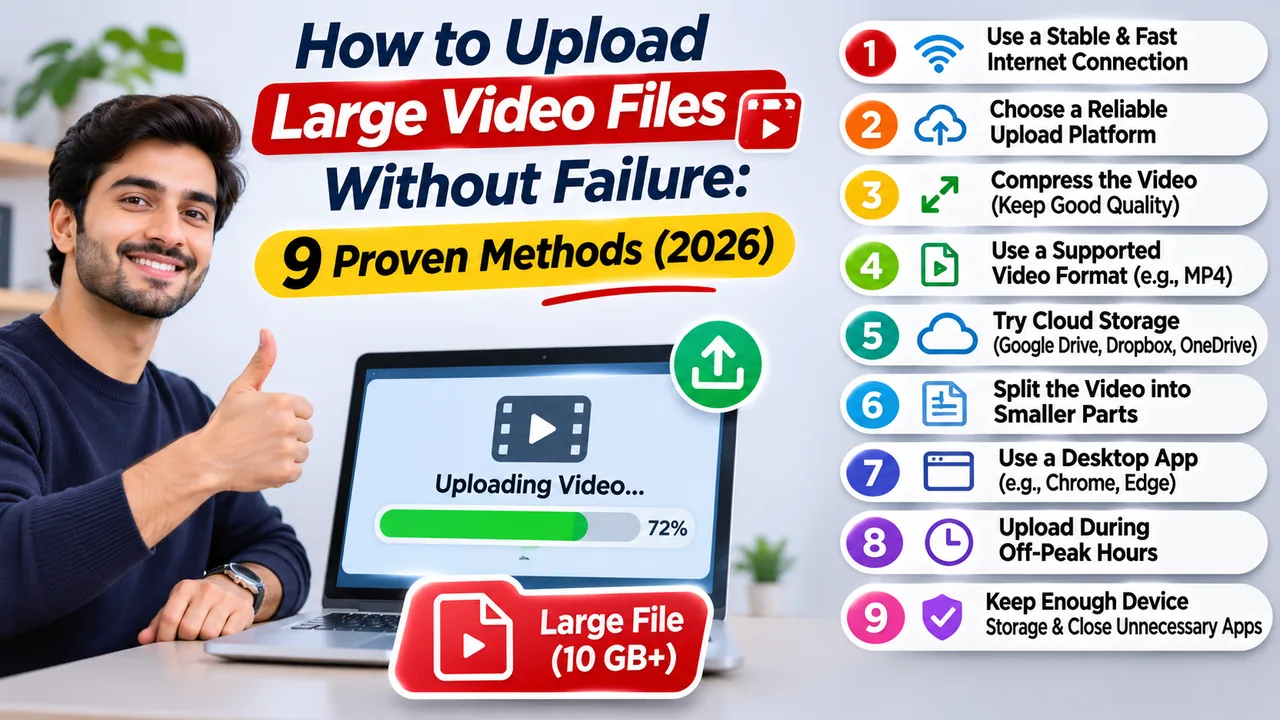
Step 2: Upload your video
Choose a video file from your device and complete the upload.
Use a descriptive filename so the video is easier to identify later.
Step 3: Wait for processing
Some videos need processing before browser playback becomes available.
Larger files or formats requiring conversion may take longer.
Do not assume a newly uploaded video is immediately ready for embedding.
Step 4: Open the video or its sharing options
Locate the uploaded file in your account.
Look for the available player, sharing, or embed option.
The precise controls may differ depending on the current FileMoon interface.
Step 5: Copy the embed code
If an iframe embed option is available, copy the complete code.
A normal watch-page link is not necessarily the same as an embed-player URL.
Do not manually guess or construct a FileMoon embed address.
Step 6: Paste the code into your website
Use the appropriate method for your platform:
WordPress: Custom HTML block
Elementor: HTML widget
Custom HTML site: Page source
Laravel: Blade template
Other website builders: Supported custom-code area
Step 7: Test the player
Open the published webpage and verify that the video loads and plays.
Test fullscreen mode, mobile layout, and any relevant access restrictions.
If your account does not display an embed option, consult FileMoon Support rather than treating the normal Share link as guaranteed iframe code.
Why use FileMoon for embedded videos?
FileMoon is designed for creators and website owners who need hosting, streaming, file management, and supported website embedding.
Its platform can separate media storage and delivery from the server running your website.
For more technical background, see How FileMoon Video Streaming Works.
Best for: Publishers, creators, community websites, and businesses managing hosted video libraries.
Method 5: Embed a YouTube Video
YouTube provides a built-in embed option.
According to YouTube's official instructions, you can copy the embed code directly from the video's sharing menu.
Steps
Open the YouTube video on a computer.
Select Share.
Choose Embed.
Copy the provided HTML code.
Paste it into your website's HTML area.
Save and test the page.
A typical YouTube embed uses a URL similar to:
<iframe width="800" height="450" src="https://www.youtube.com/embed/VIDEO_ID" title="YouTube video player" loading="lazy" allow="accelerometer; autoplay; clipboard-write; encrypted-media; gyroscope; picture-in-picture; web-share" referrerpolicy="strict-origin-when-cross-origin" allowfullscreen> </iframe>
Replace VIDEO_ID with the correct ID, or simply use YouTube's generated code.
The video's owner may disable embedding.
If embedding is unavailable, respect the restriction rather than attempting to bypass it.
Best for: Public tutorials, educational content, demonstrations, and videos already published on YouTube.
Method 6: Embed Videos in a Laravel Website
Laravel developers can place video players inside Blade templates.
This is useful for applications with article pages, dashboards, course lessons, or member-only video libraries.
Basic Blade example
Suppose your application has a validated, trusted embed URL available as $embedUrl.
<div class="video-container"> <iframe src="{{ $embedUrl }}" title="Video player" loading="lazy" allow="fullscreen; picture-in-picture" allowfullscreen> </iframe> </div>
Add responsive styling:
.video-container { position: relative; width: 100%; aspect-ratio: 16 / 9; overflow: hidden; background: #000; border-radius: 10px; } .video-container iframe { position: absolute; inset: 0; width: 100%; height: 100%; border: 0; }
Security note: Do not allow untrusted users to supply arbitrary iframe destinations without validation. Maintain an allowlist of approved HTTPS video-hosting domains and verify URLs on the server before rendering them.
For paid courses or member-only content, protect the page using appropriate Laravel authentication and authorization controls.
Also review the video provider's own access restrictions. Protecting the Blade page alone does not automatically protect an independently accessible player URL.
Our guide to Protecting Videos From Unauthorized Access and Sharing explains additional considerations.
Best for: Custom Laravel websites, membership platforms, and developer-managed applications.
Method 7: Embed a Self-Hosted MP4 Video Using HTML5
You do not always need an external hosting platform.
If you control the video file and server, HTML5 provides a native video element.
Example:
<video controls width="800" preload="metadata" playsinline> <source src="/videos/tutorial.mp4" type="video/mp4"> Your browser does not support HTML5 video. </video>
The browser displays its native playback controls.
According to MDN's HTML video documentation, the video element supports controls, poster images, preload settings, and other playback attributes.
When is self-hosting appropriate?
Self-hosting may be suitable for:
A small number of short videos
Websites with predictable traffic
Internal applications
Teams that already manage their own media infrastructure
However, larger video libraries can create significant storage and bandwidth demands.
If your website experiences high video traffic, dedicated hosting may simplify media delivery.
Best for: Small video collections and websites with adequate server resources.
Which Video Embedding Method Should You Choose?
| Website type | Recommended approach | Main advantage |
|---|---|---|
| WordPress blog | Embed block or Custom HTML | Easy publishing |
| Elementor website | Video widget or HTML widget | Visual layout control |
| Laravel application | Validated iframe in Blade | Custom integration |
| Static HTML website | Iframe embed | Simple implementation |
| Small self-hosted site | HTML5 video | Direct file control |
| YouTube publisher | YouTube embed | Built-in sharing workflow |
| Video-heavy website | Dedicated hosting such as FileMoon | Separate media delivery |
The most suitable approach depends on your publishing needs, traffic, technical resources, and content-access requirements.
How to Make Embedded Videos Responsive on Mobile
A common video embedding problem is a player that looks correct on desktop but extends beyond the screen on mobile devices.
This usually happens when the iframe has fixed dimensions without a responsive wrapper.
For example, a player with a fixed width of 900 pixels may overflow a smartphone screen.
Use a responsive 16:9 container
For most landscape videos, a 16:9 aspect ratio is a practical starting point.
<div class="responsive-video"> <iframe src="https://video-provider.example/embed/VIDEO_ID" title="Responsive video player" loading="lazy" allow="fullscreen; picture-in-picture" allowfullscreen> </iframe> </div>.responsive-video { width: 100%; aspect-ratio: 16 / 9; position: relative; overflow: hidden; background: #000; } .responsive-video iframe { position: absolute; inset: 0; width: 100%; height: 100%; border: 0; }
The wrapper scales with the available content width.
This allows the embedded player to fit different screen sizes without manually setting separate widths for every device.
What about vertical videos?
A 9:16 ratio may be more suitable for vertical videos.
However, some providers display vertical content within their own landscape-oriented player.
Choose the aspect ratio that matches the provider's actual player and test it on real devices.
How to Fix Common Video Embedding Problems
Embedding problems can originate from the website, browser, hosting provider, or video itself.
Before changing code, determine whether the video plays directly on its hosting platform.
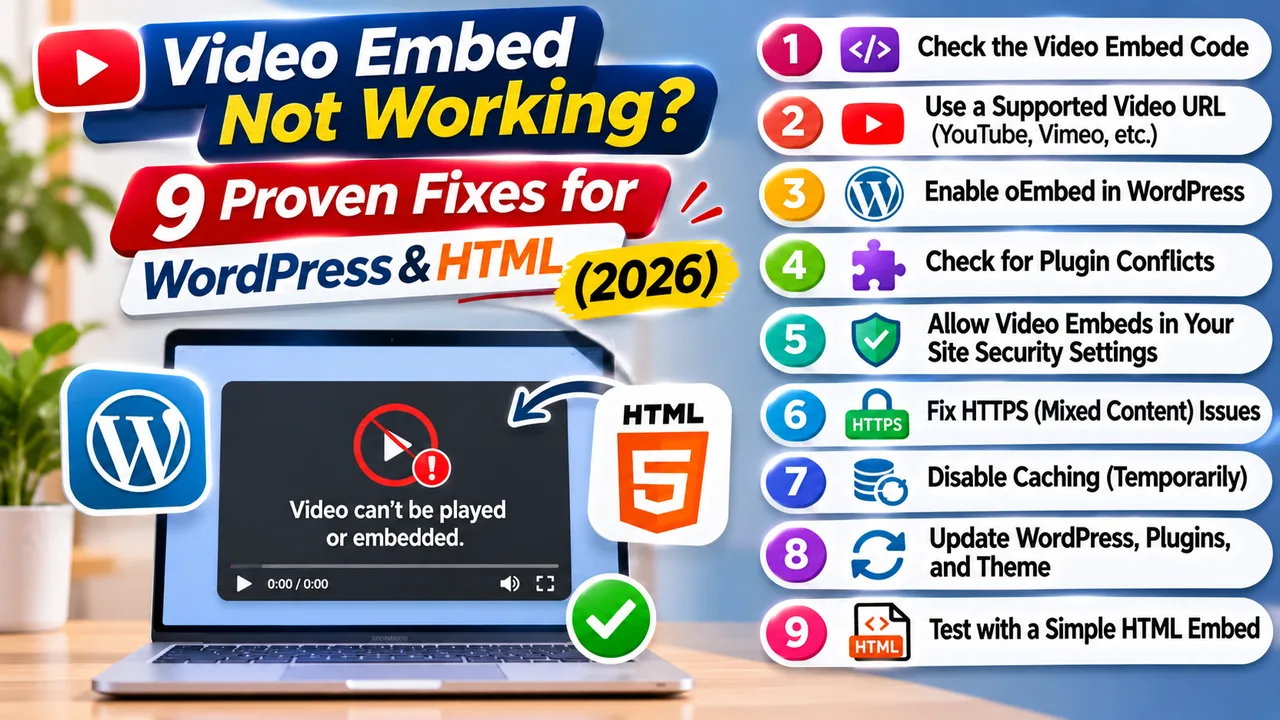
Problem 1: Video embed shows a blank screen
Possible causes:
Incorrect embed URL
Video not ready for playback
Embedding restrictions
Browser extension interference
Content Security Policy restrictions
Temporary player or network errors
What to do:
First, open the original watch page.
If the video does not play there, the problem may be with processing or the hosted file.
If the watch page works but the iframe does not, inspect the embed URL, browser console, and website security configuration.
Problem 2: Video works on desktop but not mobile
This can happen because of unsupported playback behavior, restrictive autoplay settings, browser limitations, or incorrect player dimensions.
Use responsive iframe styling and test playback manually.
Avoid relying on autoplay for essential content.
Mobile browsers commonly restrict autoplay with sound.
Problem 3: Video displays “Refused to Connect”
This usually means the target website does not permit its content to be displayed in an iframe.
The provider may use security headers such as X-Frame-Options or Content Security Policy frame-ancestors.
The correct solution is to use an official embed endpoint that permits framing.
Do not attempt to bypass the provider's embedding restrictions.
Problem 4: Video keeps buffering
Buffering can result from slow internet connections, server congestion, high video bitrates, or media-delivery problems.
If a video works at a lower quality but repeatedly pauses at a higher quality, the available connection speed may be insufficient.
If every viewer experiences the same issue, investigate the hosting or delivery configuration.
For a more detailed explanation, explore FileMoon's video streaming platform guide and the video hosting guides library.
Problem 5: Fullscreen button does not work
Check whether the iframe includes the necessary fullscreen permission.
For example:
allow="fullscreen; picture-in-picture" allowfullscreen
The parent page's Permissions Policy and the provider's own player behavior may also affect fullscreen availability.
Problem 6: Video player is too small
Avoid hardcoded dimensions that do not match the page layout.
Use a responsive wrapper and check whether the website's theme or page builder imposes a maximum width.
If the player appears unusually narrow, inspect the surrounding container before modifying the iframe itself.
Problem 7: WordPress removes the iframe code
Some WordPress environments restrict raw iframe markup.
Try the supported Embed block first.
If custom iframe code is necessary, check the current user permissions and hosting configuration.
Do not disable website security controls globally just to make one video embed work.
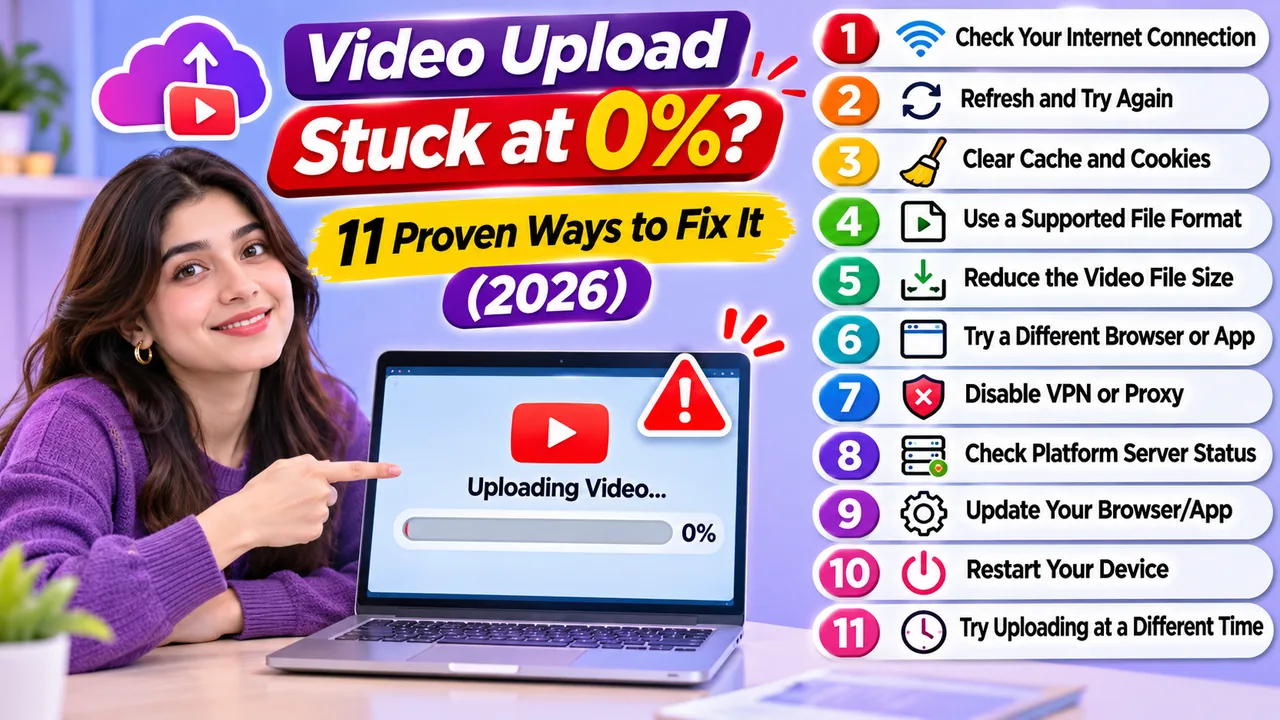
Problem 8: FileMoon video is uploaded but does not play
The file may still be processing, or its playback availability may be affected by format, access settings, or a technical error.
Check the file's status and test its normal viewing link.
FileMoon's FAQs explain that some uploads require processing before the player becomes available.
If the problem continues, contact FileMoon Support with the affected video URL and a description of the issue.
How to Improve Website Performance With Embedded Videos
Embedded video players can add network requests and JavaScript resources to a page.
If you place many players inside one article, the page may become slower even though the video files are hosted elsewhere.
Use lazy loading when appropriate
For videos positioned below the visible portion of a page, consider:
loading="lazy"
This tells the browser it may defer loading the iframe until the user approaches it.
However, if a video is the main content visible immediately at the top of the page, lazy loading may delay the experience.
Use it selectively.
Avoid embedding too many players
A page with 20 video players may load more slowly than one containing a single player.
For large collections, consider thumbnails or a structured video library where players load only when needed.
Reserve space for the player
Define an aspect ratio or dimensions so the page layout remains stable while the player loads.
This helps prevent content from shifting as the browser renders the page.
Use a reliable hosting workflow
Video delivery performance depends on more than iframe code.
Encoding, file preparation, network quality, player compatibility, and server capacity all influence playback.
For more background, see FileMoon Video Hosting for Websites.
Does Embedding Videos Help SEO?
Embedding relevant videos can improve the usefulness of a webpage, but simply adding a video does not guarantee higher Google rankings.
Search engines still need to understand the page's purpose and content.
For example, a tutorial about repairing a laptop may be more useful when it includes both clear written instructions and a relevant demonstration video.
The video should support the article rather than replace all written information.
Write useful content around the video
Include a descriptive heading, an explanation of what viewers will learn, and any important instructions that are not obvious from the video.
A short summary or transcript can help visitors who prefer reading or cannot play the video.
Use descriptive titles
Avoid generic labels such as “Video 1” or “Watch This.”
A descriptive heading such as “How to Install WordPress: Step-by-Step Video Tutorial” provides clearer context.
Consider video structured data
For pages where a video is a significant part of the content, appropriate VideoObject structured data can help search engines understand it.
Only include properties that accurately describe the video.
Do not invent video duration, upload dates, thumbnails, or other metadata.
Google provides official documentation for Video structured data.
Check indexing requirements
If video search visibility matters, review Google's guidance on Video SEO best practices.
A video may be playable for visitors without necessarily qualifying for video-specific search features.
Avoid thin video pages
A webpage containing only an iframe and a generic sentence may offer limited independent value.
Add useful context, instructions, troubleshooting information, comparisons, or other original material when relevant.
The goal is to help the visitor complete a task, not to add unnecessary text around every video.
Is Embedding Videos Safe?
Embedding videos from a trusted provider is common, but it still requires basic security precautions.
An iframe loads external content, and the provider controls what appears inside that player.
Use HTTPS
Your website and embedded player should use secure HTTPS connections.
Mixed-content issues can prevent some resources from loading correctly.
Use trusted video providers
Avoid copying iframe code from unknown websites without reviewing its source.
A video embed should come from the hosting service you intentionally selected.
Validate user-supplied URLs
If your website lets users submit videos, validate embed destinations on the server.
Do not allow arbitrary HTML or untrusted iframe sources to be inserted into public pages.
Understand privacy limitations
An embedded player may communicate with a third-party hosting service.
Website owners should review their privacy obligations, cookie disclosures, and applicable consent requirements.
Protect private videos
A hidden page is not the same as a secure video.
If you publish member-only or confidential content, consider authentication, authorization, provider-side access controls, and other appropriate protections.
FileMoon's Secure Video Hosting guide discusses available privacy and access-control approaches.
Can Someone Copy Your Embedded Video?
Someone may be able to copy an iframe snippet or share a publicly accessible player URL.
That does not necessarily mean they can download the underlying video file, but it does highlight the difference between displaying content and controlling access.
For sensitive or paid content, consider a provider that supports suitable restrictions.
Depending on the implementation, these may include:
Password protection
Domain-based embed restrictions
Geographic access controls
Application authentication
Time-limited authorization
No single measure can guarantee that a determined viewer will never record or redistribute video content.
For a more detailed discussion, read How to Protect Videos From Unauthorized Access and Sharing.
Copyright Rules for Embedded Videos
Embedding a video does not automatically give you permission to use it.
Before embedding content, consider who owns the video and whether the provider or rights holder permits the intended use.
A platform's embed button may provide a technical method for displaying a video, but it does not override copyright law, licensing restrictions, or applicable platform terms.
For business websites, educational courses, and commercial publishing, use content you own, have licensed, or are otherwise legally permitted to display.
If the original publisher disables embedding, respect that restriction.
Frequently Asked Questions
How do I embed a video on any website?
Upload the video to a service that supports embedding, copy its official embed code, and paste it into your website's HTML or supported editor. Publish the page and test playback.
What is the easiest way to embed a video?
For supported services, pasting a video URL into a WordPress Embed block is often the easiest method. Other platforms may require iframe code.
Can I embed a video without uploading it to my server?
Yes. A dedicated video hosting service can store and deliver the media while your website displays the embedded player.
How do I embed a FileMoon video?
Upload a supported video to FileMoon, wait until it is ready for playback, locate the available embed option, and paste the provider-generated code into your website.
Can I embed FileMoon videos in WordPress?
Yes, FileMoon supports website embedding. Where an iframe embed code is available, you can use a WordPress Custom HTML block if your site permits iframe markup.
Can I embed a FileMoon video in Elementor?
Yes. Use an HTML widget with the supplied iframe embed code, then test the published player on desktop and mobile.
Does FileMoon support responsive video embedding?
FileMoon describes responsive website embedding as part of its video hosting and streaming platform.
Can I embed a video using only HTML?
Yes. You can use an iframe for a supported external player or the native HTML5 video element for a compatible media file.
What is the difference between an iframe and an HTML5 video tag?
An iframe displays another document, such as a hosted video player. The HTML5 video element plays supported media resources directly within the browser.
Why is my embedded video not showing?
Possible reasons include an incorrect embed URL, disabled embedding, incomplete processing, restrictive security headers, or browser-related issues.
How do I make an embedded video mobile-friendly?
Place the iframe inside a responsive container with a suitable aspect ratio, commonly 16:9 for landscape videos.
Can embedded videos autoplay?
Some players support autoplay, but browsers often restrict autoplay with sound. Do not rely on autoplay for essential information.
Does embedding a video slow down a website?
It can. Embedded players load additional resources, although the underlying video data may be delivered by another service. Lazy loading and limiting unnecessary players can help.
Are embedded videos good for SEO?
Relevant videos can make content more useful, but embedding alone does not guarantee rankings. Clear written context, accessible content, technical performance, and appropriate metadata matter.
Can I embed private videos?
Possibly, depending on the hosting service and its access-control features. A public iframe alone is not adequate protection for confidential material.
Can I embed videos on a Laravel website?
Yes. You can render a trusted embed URL inside a Blade template using an iframe. Validate provider URLs and protect restricted pages with appropriate authentication and authorization.
Can I embed videos without using a plugin?
Yes. Many websites support native embedding or custom HTML, so a separate plugin is not always required.
Is video embedding free?
Some hosting services provide free embedding options, while others have usage limits or paid features. Review the current provider terms before relying on a particular feature.
Final Verdict: How to Embed Videos on Any Website in 2026
Understanding how to embed videos on any website gives you more flexibility when publishing tutorials, product demonstrations, lessons, and other video content.
For WordPress, start with the native Embed block. For Elementor, use a supported Video widget or an HTML widget. For Laravel and custom websites, an iframe provides a straightforward integration when the embed URL is trusted and permitted.
If you manage a growing video library, a dedicated hosting platform can help separate media storage and streaming from your main website server.
FileMoon provides a video hosting and streaming workflow designed for website owners, creators, and publishers who want to upload, manage, share, and embed supported videos.
Whatever method you choose, test the published player on desktop and mobile, verify playback permissions, use responsive layouts, and provide useful written context around your videos.
A successful embed should be easy for visitors to find, understand, and watch.
About FileMoon: FileMoon is a video hosting and file-sharing platform offering upload, streaming, sharing, and supported website-embedding capabilities.
Editorial note: This guide provides general web-development and video-publishing instructions. Third-party platform interfaces, supported embed options, and browser behavior may change over time.
Last updated: October 31, 2026.