









Video Upload Stuck at 0%? 11 Proven Ways to Fix It (2026)
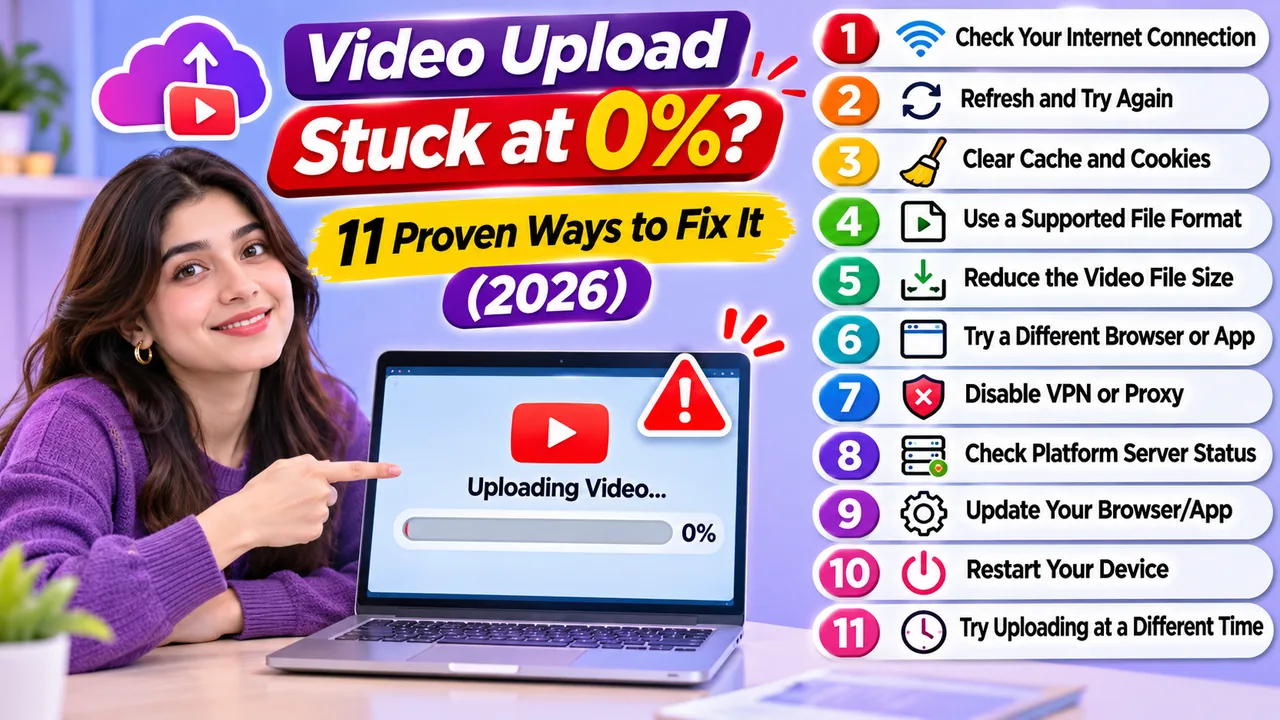
You select a video, click Upload, and wait. The filename appears, but the progress bar refuses to move. Five minutes later, it still shows 0%.
It's a frustrating problem, especially when you're uploading a large recording, preparing a video for your website, or working against a publishing deadline.
The difficult part is that video upload stuck at 0% is a symptom, not a diagnosis. The same frozen progress bar can be caused by a browser extension, an expired login session, an unstable connection, a blocked HTTP request, or an upload server that never accepted the file.
The good news is that you don't need to try random fixes. A few targeted checks can help identify where the upload is failing.
This guide walks through 11 practical solutions, explains common HTTP upload errors, and shows how to investigate a failed transfer using Chrome Developer Tools.
Quick Fix: What to Do When Your Video Upload Is Stuck at 0%
If your video upload is stuck at 0%, start with these checks:
Wait briefly to rule out a slow initialization process.
Check whether your internet connection is working.
Try uploading a small video.
Refresh the upload page and sign in again if needed.
Disable potentially interfering browser extensions temporarily.
Try another browser or a private window.
Check your account's file-size restrictions.
If the upload still refuses to start, open your browser's Network panel and inspect the upload request. A status code or error message may reveal more than the progress bar.
Why Does a Video Upload Stay at 0%?
Most upload interfaces perform several tasks before showing meaningful progress.
The browser may need to validate the selected file, request upload authorization, create an upload session, contact the upload endpoint, or prepare the first file chunk.
If one of those operations fails, the interface may remain at 0% even though the problem occurred before any video data was transferred.
There is another possibility: the upload may have started, but the progress indicator is not updating correctly.
That distinction matters. A frozen progress bar doesn't automatically mean that the hosting server is down.
Common symptoms and their likely causes
| What you see | Possible explanation | First action |
|---|---|---|
| Upload remains at 0% immediately | Initialization or request failure | Check the Network panel |
| Upload button does nothing | JavaScript error or blocked interaction | Check browser Console |
| Upload starts in another browser | Extension, browser data, or compatibility issue | Test browser settings |
| Small videos work, large videos fail | File limit, request size, or transfer issue | Check upload limits |
| Upload shows HTTP 403 | Access denied or security restriction | Check session and response |
| Upload shows HTTP 413 | Request body exceeds an accepted limit | Check upload method and chunk size |
| Upload starts but later freezes | Network, timeout, or retry failure | Check connection and request status |
These are diagnostic clues, not definitive conclusions. The response body and application logs may be needed to identify the exact cause.
Check Your Internet Connection and Upload Speed
An internet connection can appear healthy while uploads perform poorly.
Streaming a video or browsing websites mainly tests download performance. Uploading a video depends on the upstream connection.
A connection with 100 Mbps download speed might have considerably less upload bandwidth.
Start by running a speed test using Speedtest by Ookla.
Look at the upload result rather than focusing only on download speed.
For perspective, a 5GB file takes approximately 67 minutes to transfer at a constant 10 Mbps under ideal conditions. Actual transfer time can be longer.
However, slow upload speed alone usually does not explain a request that never starts. If your progress bar remains at 0% and the browser reports a failed request, investigate that error rather than waiting indefinitely.
Try this: Upload a small test video of around 20–50MB. If it works, repeat the test with a larger file while monitoring the network request.
Refresh the Page and Check Your Login Session
Some upload failures happen before the video reaches the server.
For example, the upload page may have been open for several hours while your authentication session expired.
When you finally select a file, the application might reject the upload request because your session is no longer valid.
A request could return HTTP 401 or 403, depending on how the platform handles authentication and permissions.
To investigate:
Check whether you're still signed in.
Refresh the upload page.
Sign in again if the session has expired.
Start a new upload after confirming your account is active.
Be careful about refreshing during an active upload. Unless the service explicitly supports recovery, refreshing may interrupt the transfer and require you to start again.
Try Another Browser or a Private Window
Browser-specific problems are easier to isolate than they first appear.
Suppose an upload remains at 0% in Chrome but starts normally in Firefox. That doesn't prove Chrome itself is defective. The difference may involve installed extensions, cached application files, cookies, or browser configuration.
Try opening the upload page in a private browsing window.
If it works there, investigate your normal browser profile.
You can also test the latest version of another mainstream browser, such as Microsoft Edge or Firefox.
Avoid clearing all browser data immediately. Doing so can sign you out of websites and remove saved site settings.
Instead, narrow down the cause first.
Temporarily Disable Browser Extensions
Ad blockers, privacy extensions, script blockers, and some security tools can interfere with upload requests.
For example, an extension may block a request to a separate upload domain even when the main website loads normally.
The page may display the selected filename while the actual network request never reaches its destination.
Test the upload with extensions disabled in a private window or a separate browser profile.
If the upload starts successfully, re-enable extensions individually until you identify the one causing the conflict.
Only make exceptions for websites you trust. Avoid permanently disabling security protections just to complete an upload.
Check File-Size Limits and Account Restrictions
A video upload stuck at 0% may be caused by a file that exceeds the service's accepted size.
Some platforms reject oversized files before transferring any data. Others show an error only after the browser attempts to initialize the upload.
The important distinction is between an account's maximum file size and the maximum size of an individual HTTP request.
A service may permit a multi-gigabyte video while requiring that it be uploaded in smaller chunks.
For example, FileMoon's API documentation describes a chunked upload method using 90MB chunks for large files.
If you're using FileMoon, check the current account limits and the upload method available to you. The public FAQ and API documentation should be consulted together, as their published limit information is not currently consistent.
If a smaller video uploads successfully but a larger one fails, file-size restrictions and request limits should be among the first things you investigate.
Check Whether Cloudflare or Another Firewall Is Blocking the Upload
Security services protect websites against malicious traffic, but legitimate requests can sometimes be blocked.
A browser upload might trigger a firewall rule because of its request characteristics, rate limits, or a security challenge that the upload client cannot complete.
A blocked upload can appear as a frozen progress bar, particularly when the application doesn't display the underlying HTTP response.
How to recognize a security-related problem
Look for signs such as:
An HTTP 403 response.
A security challenge or access-denied page.
A request that fails before transferring file data.
A response containing a security reference or request identifier.
Cloudflare also imposes request-body size limits according to the website's plan. A request exceeding the accepted limit may receive HTTP 413.
These limits apply to individual HTTP requests, which is why properly implemented chunked uploads are important for large files.
If you manage the website, investigate the corresponding firewall event and upload endpoint. Review the rule responsible for the block before making any changes.
If you're an ordinary user, contact the hosting provider with the error details. Don't attempt to bypass the website's security controls.
For technical background, see Cloudflare's HTTP 413 documentation.
Understand HTTP Upload Errors
When an upload fails, the HTTP response often provides a useful starting point.
Here are several status codes worth recognizing.
| HTTP status | Meaning | What to investigate |
|---|---|---|
| 400 | Bad Request | Invalid or missing upload parameters |
| 401 | Unauthorized | Expired or missing authentication |
| 403 | Forbidden | Permissions or security restrictions |
| 408 | Request Timeout | Request timeout conditions |
| 413 | Content Too Large | Request-body size limit |
| 415 | Unsupported Media Type | Rejected file/media type |
| 429 | Too Many Requests | Rate limiting |
| 500 | Internal Server Error | Server-side application failure |
| 502 | Bad Gateway | Gateway or upstream response issue |
| 503 | Service Unavailable | Temporary unavailability or overload |
| 504 | Gateway Timeout | Upstream response took too long |
A 403 error doesn't necessarily mean a firewall blocked you. It can also indicate insufficient permissions.
Similarly, HTTP 500 is a general server error. It does not identify which internal component failed.
The correct response depends on the error message, request details, and server implementation.
You can find the standardized definitions in MDN's HTTP status code reference.
Use Chrome Developer Tools to Find the Actual Error
This is one of the most valuable troubleshooting methods because it replaces guesswork with evidence.
You don't need to be a developer to perform a basic upload inspection.
Step 1: Open Developer Tools
Open the upload page in Chrome.
Press F12, or use Ctrl + Shift + I on Windows.
Select the Network tab.
Step 2: Start a new upload
Keep the Network panel open and select a small test video.
Watch for requests associated with uploading, authorization, or upload initialization.
Depending on the platform, the request might use POST, PUT, PATCH, or another supported method.
Step 3: Inspect the request
Select the relevant request and examine:
Headers: Request URL, method, and HTTP status.
Response: Any error message returned by the server.
Timing: Whether the request is waiting, transferring, or failing.
Initiator: Which script or application component started the request.
If the request fails with HTTP 413, the next step is to check the request-body limit.
If it fails with HTTP 401, verify your authentication session.
If no upload request appears, investigate the browser Console for JavaScript errors or application-side validation failures.
Step 4: Check the Console
Select the Console tab and look for errors that appeared when you clicked Upload.
A failed JavaScript operation can prevent an upload from starting even when the server is functioning normally.
Step 5: Share only safe diagnostic information
If you contact support, include the HTTP status, approximate time, file size, browser version, and relevant error message.
Do not share authentication tokens, session cookies, API keys, or complete request headers containing credentials.
If you export a HAR network log, review and redact sensitive data before sending it.
Check Chunked Upload Initialization
Large-file upload systems often divide files into smaller chunks.
The client sends each chunk along with metadata that allows the server to identify the upload and reconstruct the file.
However, a chunked upload can fail before the first chunk is accepted.
Possible causes include an invalid upload identifier, missing metadata, an unsupported chunk size, or a rejected authorization request.
FileMoon API example
FileMoon documents the following metadata for its large-file chunked upload workflow:
| Parameter | Purpose |
|---|---|
| dzuuid | Identifies the upload |
| dzchunkindex | Current chunk index |
| dztotalchunkcount | Total number of chunks |
| dzchunksize | Configured chunk size |
| dztotalfilesize | Size of the original file |
| dzchunkbyteoffset | Byte offset of the current chunk |
FileMoon's API documentation states that chunk indexes begin at zero and that the original filename must remain consistent across chunks.
Developers should use the documented 90MB chunk configuration and verify all required metadata.
An invalid first-chunk request may prevent the upload from progressing at all.
For implementation details, see the FileMoon API documentation.
Important: Chunked uploading does not automatically guarantee resumability. Whether a failed transfer can resume depends on the client and server implementation.
Check Antivirus, VPN, and Network Restrictions
Sometimes the upload fails because the network environment interferes with the connection.
This is more likely on managed office networks, restricted public Wi-Fi, or connections routed through VPN services.
Corporate firewalls may limit certain types of outbound requests. VPN endpoints may introduce additional latency or connection instability.
Antivirus software can also inspect web traffic, although its behavior depends on the product and configuration.
To narrow down the cause, test a trusted alternative network if one is available.
For example, you might compare your home broadband connection with your mobile hotspot.
If the upload works on one network but fails on another, investigate the network configuration rather than repeatedly modifying the video file.
Avoid disabling corporate security controls or bypassing network policies. Contact the network administrator when appropriate.
Contact Support With Useful Diagnostic Details
If you've tried the relevant checks and the upload still won't start, the next step is to provide the hosting provider with enough information to investigate.
A message saying "upload not working" is difficult to troubleshoot.
A more useful report includes the specific failure pattern.
For example:
Subject: Video upload remains at 0%
I'm unable to start a video upload. The progress indicator remains at 0% after selecting the file.
File size: 5.8GB
File format: MP4
Browser: Chrome
Connection: Home broadband
Issue: The upload request returns HTTP 403.
Small-file test: A 25MB file uploads successfully.
Approximate time of failure: [Date and time with time zone]
This information can help the support team distinguish between account restrictions, security blocks, and application errors.
For FileMoon-specific issues, use the FileMoon Contact Us page.
Never include your password, API token, or private payment information in a support request.
How to Prevent Video Upload Problems in the Future
Once you've fixed the immediate problem, a few habits can make future transfers more reliable.
Before starting a large upload, verify the file size, confirm your available upload bandwidth, and use a stable connection.
Avoid starting major transfers just before your computer is scheduled to restart or enter sleep mode.
For automated workflows, use the hosting platform's documented API rather than assuming that a browser upload interface can handle unattended transfers.
When the platform supports retryable or resumable uploads, configure them according to the provider's documentation.
And if you frequently work with multi-gigabyte videos, consider whether your source files are larger than necessary.
Our related guide, How to Upload Large Video Files Without Failure, explains the broader workflow, including upload speed, file compression, and chunked transfers. This link should be checked against the final published URL before use.
Frequently Asked Questions
Why is my video upload stuck at 0%?
A video upload stuck at 0% can result from a failed initialization request, browser error, expired session, blocked network request, or file-size restriction. Checking a small test upload and the browser Network panel can help identify the cause.
Why does my video upload work on mobile but not on my computer?
The devices may use different browsers, extensions, networks, or security settings. Test the same file under comparable conditions before deciding which component is responsible.
Can a VPN cause video upload problems?
Yes. A VPN can introduce latency, unstable routing, or restrictions that interfere with long-running uploads. Testing a permitted direct connection can help determine whether the VPN is contributing to the issue.
What does HTTP 413 mean during a video upload?
HTTP 413 means the request content exceeds a size limit accepted by the server or an intermediary. For large videos, a supported chunked upload method may be necessary.
Why does my video upload show 0% even with fast internet?
Fast download speed does not guarantee fast upload speed. The transfer may also be blocked before it begins, or the progress indicator may not be updating correctly.
Should I clear my browser cache when uploads fail?
It can help in some browser-related cases, but it shouldn't be the first action. Try a private window or another browser first to determine whether stored browser data is involved.
Can I resume a failed video upload?
Only if the platform and upload client support resumability or an equivalent recovery mechanism. Chunking alone doesn't guarantee that previously transferred data can be reused.
Why does a small video upload successfully while a large one fails?
Possible reasons include account limits, request-body restrictions, transfer timeouts, unstable connections, or errors in large-file chunking. The browser's Network panel can help distinguish among them.
Is FileMoon suitable for uploading large videos?
FileMoon offers video hosting and a documented chunked API upload workflow. Check the current account limits, supported formats, and upload instructions before transferring large files.
Final Thoughts
A frozen upload progress bar is frustrating, but repeatedly restarting the same file rarely helps unless you understand why the transfer failed.
When a video upload is stuck at 0%, start with a small-file test, check your browser and connection, and look for a meaningful HTTP response.
For technical users, the Network panel is often the fastest route to identifying the problem.
For large-file workflows, supported chunked uploads, accurate request metadata, and stable connections can make a significant difference.
The most important thing is to separate a transfer that never started from one that started and later failed. Those situations may look similar on screen, but they require different solutions.
A few minutes spent identifying the actual cause can save hours of repeated uploads.
Technical references and further reading
MDN Web Docs — HTTP Response Status Codes